
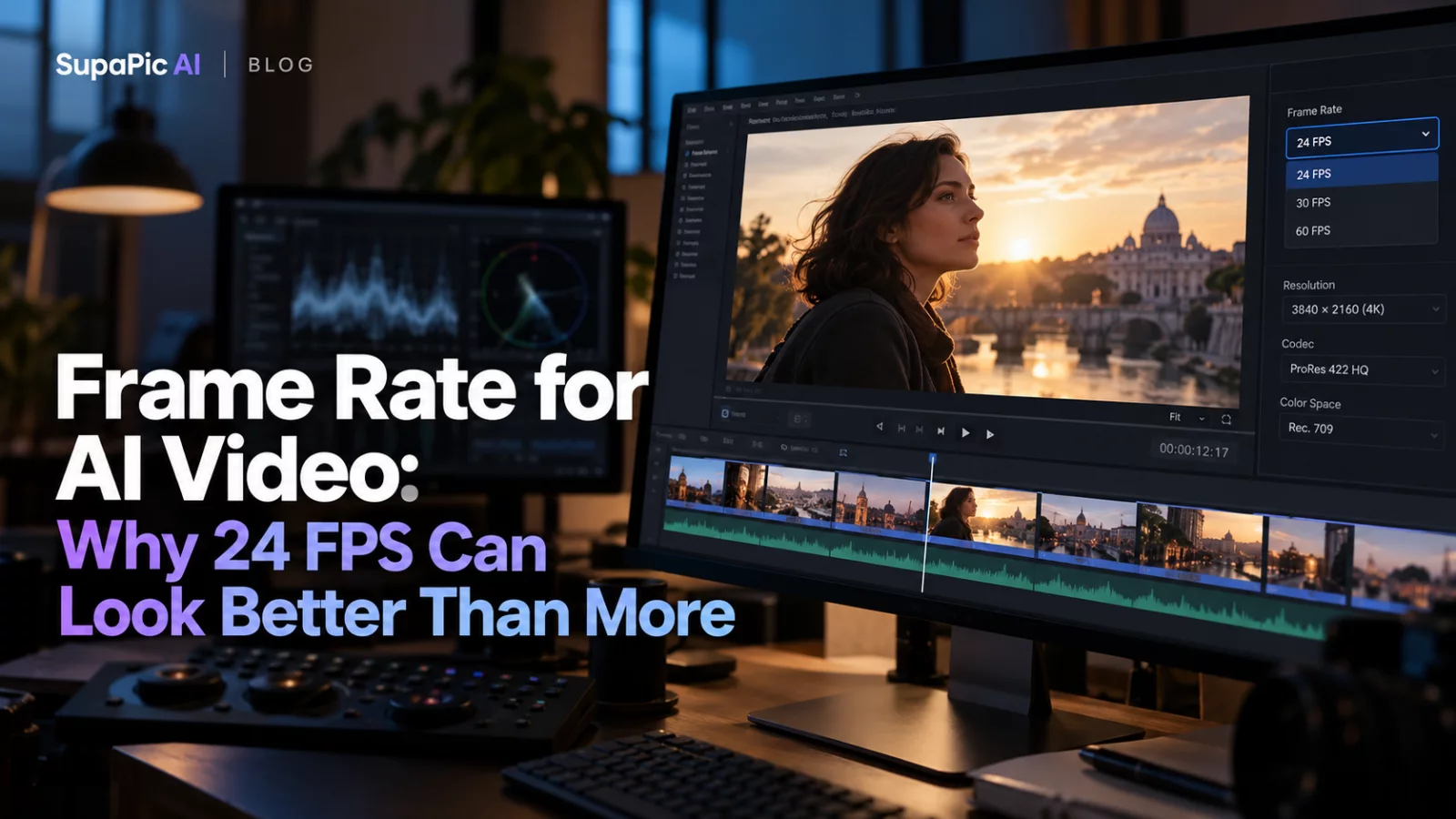
A 24 FPS video and a 30 FPS video can both look natural. The difference is not simply that one is good and the other is bad. Frame rate changes the rhythm of motion, the number of frames generated, and how footage fits with your editing timeline.
Start with the model's native output
AI video models often expose fixed frame rates or a narrow range of settings. If the output is natively 24 FPS, exporting it as 30 FPS in another editor does not automatically create six new, accurate frames per second. Some tools duplicate frames; others interpolate new ones, potentially introducing artifacts around fast-moving faces.
Why 24 FPS is common
Many viewers associate 24 FPS with cinematic motion because of its long history in film. That look can suit character-focused scenes with measured camera movement. It can also make rapid hand gestures or quick camera pans feel less smooth than higher-frame-rate footage.
Match your intended edit
If your project will be combined with existing 30 FPS footage, plan the conversion carefully. Mismatched frame rates can cause uneven cadence at cuts. Keep the original AI output as your master so you can compare it before and after editing.
Don't confuse flicker with low frame rate
If a face changes shape between frames, raising the frame rate is unlikely to solve the underlying identity instability. More frames may actually reveal the inconsistency more clearly.
If the video merely feels choppy despite stable anatomy, inspect frame cadence, playback and encoding before requesting a new generation.
A consistent 24 FPS clip with believable expressions will usually look better than a higher-FPS file full of synthetic motion glitches. Prioritize motion quality first, frame-rate targets second.