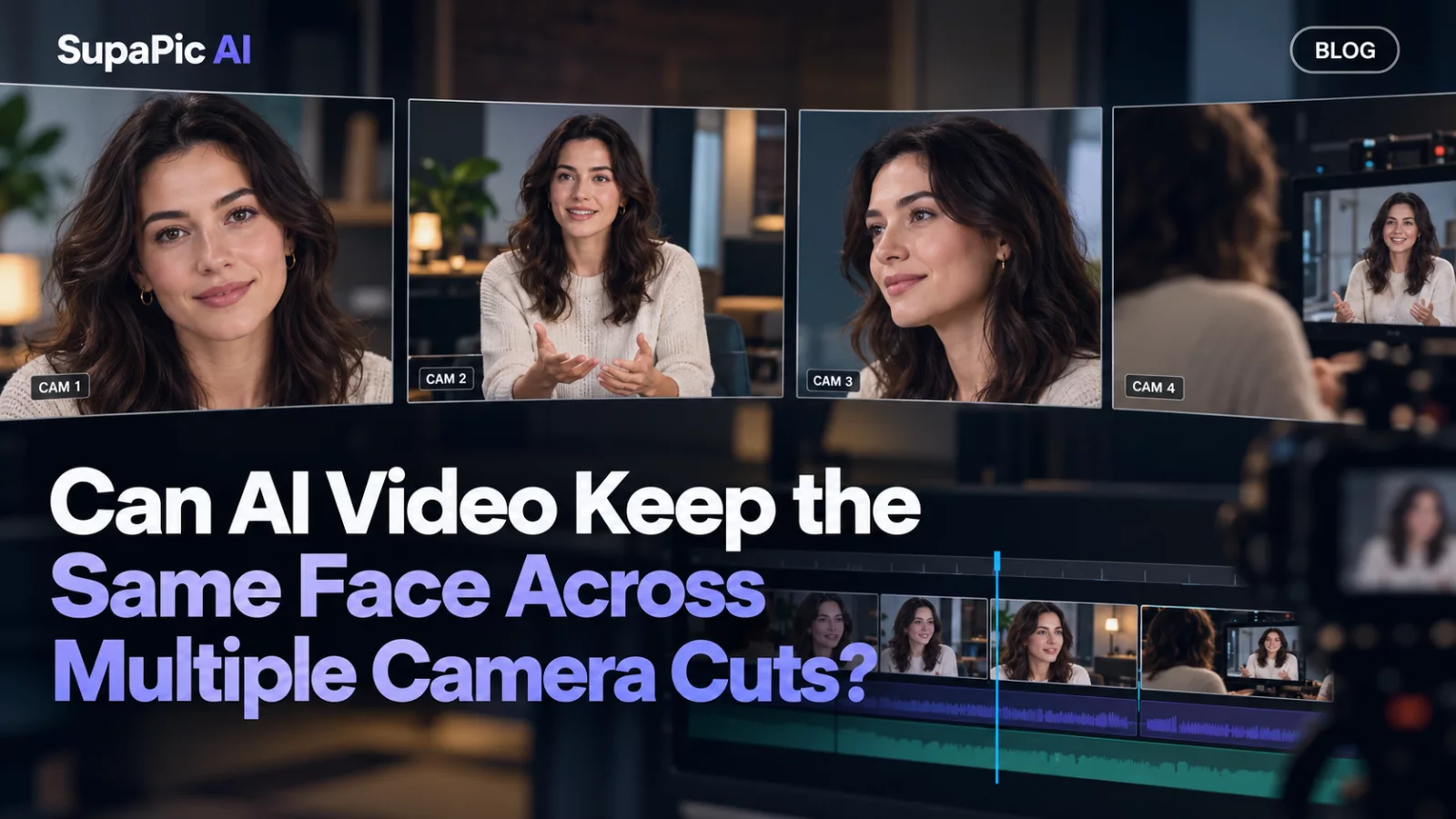
A scene can move between close-up, medium shot and reaction shot in just a few seconds. To a human viewer, the same actor is easy to recognize. To an editing model, each cut can introduce new ambiguity about the person's appearance and role.
Cuts reset visual context
After a hard cut, the target may be a different size, facing another direction or lit by another source. If the model cannot reliably connect those appearances, the replacement identity can drift or jump to a nearby person.
Build a target description that survives cuts
Clothing, role in the conversation and recurring facial cues often work better than temporary position. “The older speaker in the blue jacket, who opens and closes the scene” remains meaningful across several shots. “The person on the left” may not.
When a scene includes two targets, give each one a separate timeline or speaking cue if the editing workflow supports prompt-based assignment.
Check re-entry frames carefully
The first frame after a character returns to the screen is a common place to find identity drift. Compare that frame against the last frame before they disappeared. The face should remain recognizably the same despite a different angle or expression.
Know when the model reaches its limit
If a complex multi-cut clip fails repeatedly, a model with tighter identity-editing controls or a more manual workflow may perform better. Adding ever more adjectives to the same prompt is not always productive.
A clean edit preserves the viewer's sense of one continuous character. That is more important than maximizing visual effects in every individual shot.